Introduction
A Face Matching Unit (FMU) is the core processing component of Verifyfaces, responsible for performing real-time facial matching and managing connected cameras. Each FMU operates as a dedicated unit that ingests video streams, performs face matching analysis, and communicates with the Verifyfaces platform to deliver actionable events and insights.
Some Technology Partners also offer their own whitelabeled devices running Verifyfaces software, providing the same core functionality in partner-branded hardware.
Proper registration, monitoring, and configuration of FMUs are critical to ensure reliable performance, accurate face matching, and seamless integration with your camera network. This guide covers how to register an FMU, view its details and status, verify network interfaces, monitor Tech Partner bridge connections, and check connected cameras.
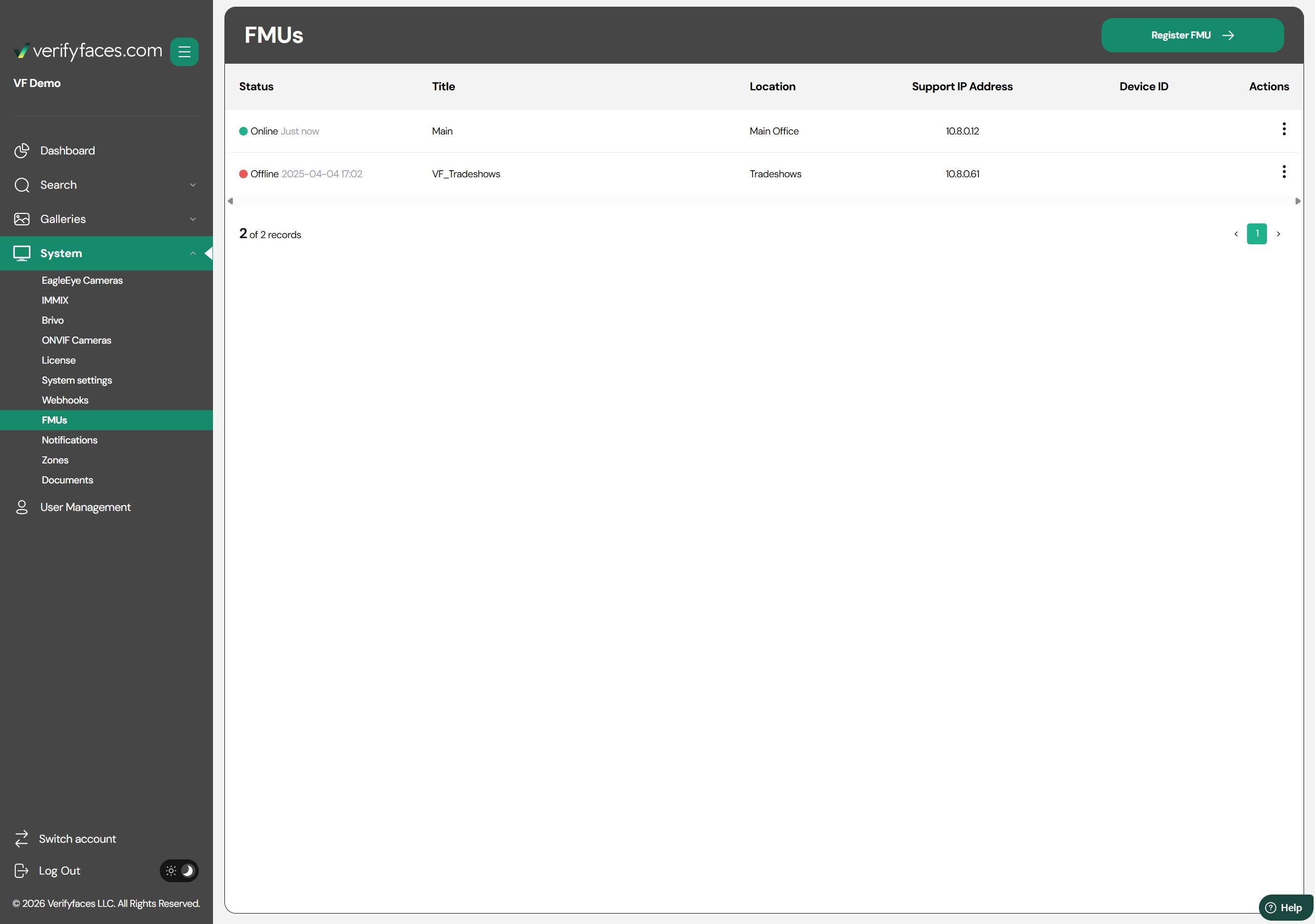
Registering a FMU
To add a new Face Matching Unit (FMU) to your Verifyfaces platform, follow these steps:
Select “Register FMU” in the FMU management section.
Enter a Name for the FMU to help identify it within your system.
Provide a Location name to identify the FMU’s installation point—for example, “Building A,” “Dallas Office,” “3rd Floor IT Closet,” or any name that helps you locate the unit.
Enter the Device ID, typically found in the documentation included with the FMU or provided by your Technology Partner.
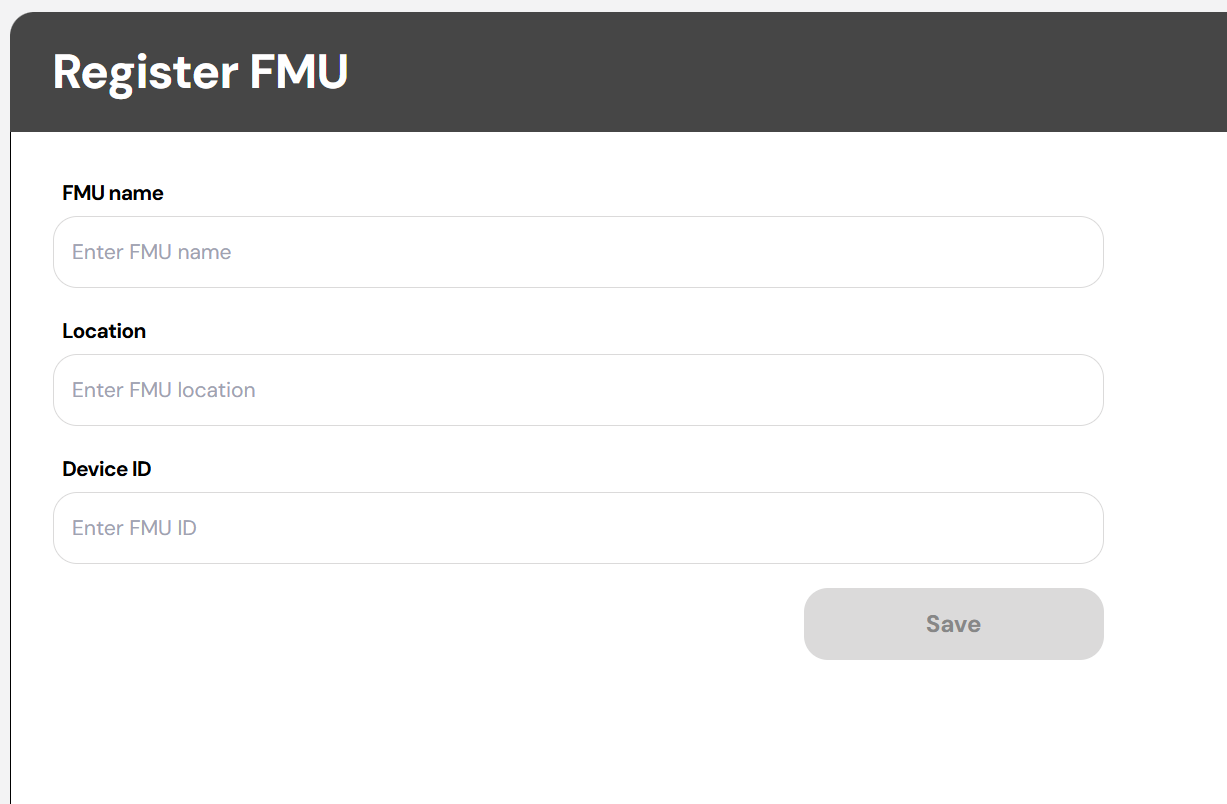
Once saved, the platform will attempt to connect to the FMU automatically, assuming the device has power and internet access. The system is designed to be plug-and-play, though additional networking configuration may be required for hardened or restricted networks. For full details, see the Network Requirements guide.
FMU Actions
The Actions menu provides additional management options for each FMU. These allow you to view information, perform maintenance, and make configuration updates as needed. Available actions include:
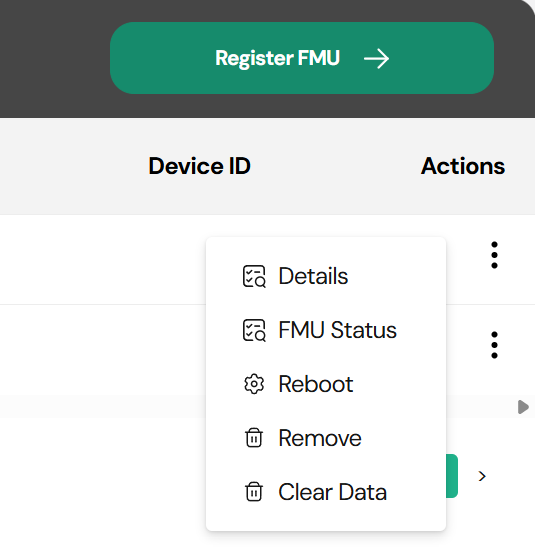
Details
View key system information, including:Edit Name & Location
CPU and Memory Usage
Total Drive Space (used and free)
FMU Status and Uptime
Support IP (used by Verifyfaces for direct support connection)
Software Version
Secondary actions available from this screen include Reboot and Repair for the FMU.
FMU Status
Provides a comprehensive overview of the unit’s operational health, including:Network Interfaces: Displays all network connections for the FMU and their current status, helping verify connectivity and accessibility.
Technology Partner Bridges: Shows the status of connected partner bridges (e.g., Eagle Eye, Immix, Brivo, Ionodes) to ensure smooth integration and synchronized video streams.
Connected Cameras: Lists all cameras linked to the FMU along with their operational status.
Show Preview: View a live feed from each camera to confirm the stream is active, check quality, and verify coverage. This is particularly useful during installation or troubleshooting.
Reboot
Restart the FMU remotely. Useful for troubleshooting or after configuration changes.Remove
Remove the FMU from the Verifyfaces platform. This action will disconnect the unit and delete it from the system configuration.Clear Data
Purge stored data from the FMU, often used for compliance or testing purposes.
Was this article helpful?
That’s Great!
Thank you for your feedback
Sorry! We couldn't be helpful
Thank you for your feedback
Feedback sent
We appreciate your effort and will try to fix the article